
※This guide uses templates and features available with the free Adobe Express plan.
Create Designs with Free Illustrations
Upload free YURUNDO illustrations to Adobe Express and use them to create flyers, social media graphics, documents, and more. Adobe Express offers a wide range of templates, so you can easily combine them with YURUNDO illustrations to create your own designs.
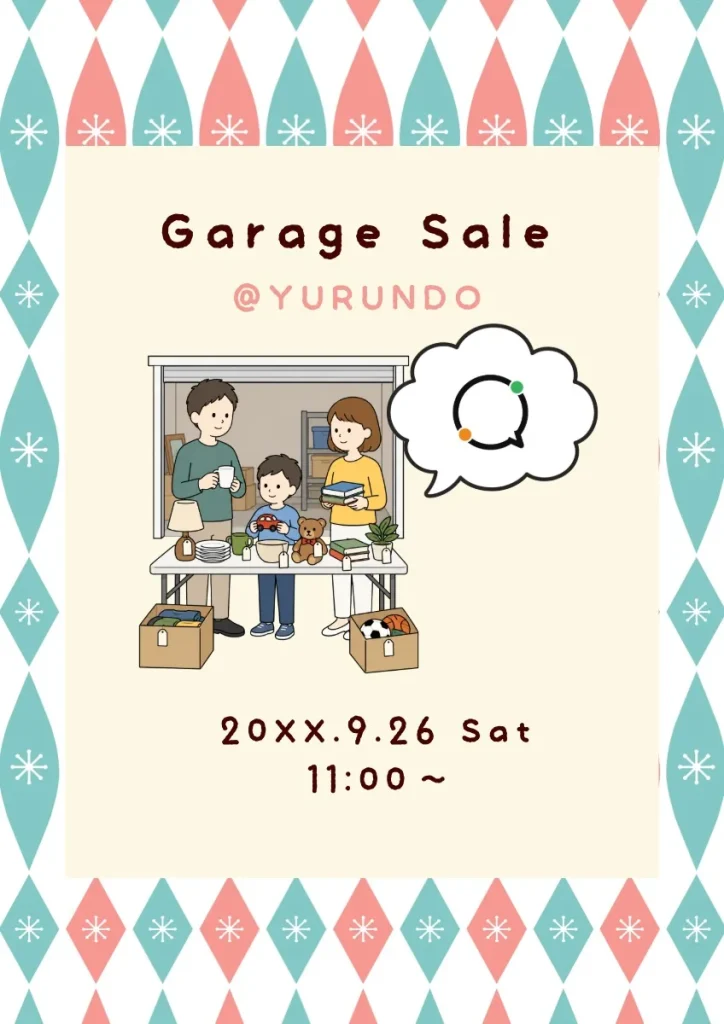
In this guide, we'll create a YURUNDO promotional flyer and walk you through the process step by step.
In this guide, we'll create a YURUNDO promotional flyer and walk you through the process step by step.
Create a Design with YURUNDO Illustrations
Get started with Adobe Express for free. Combine free YURUNDO illustrations to create flyers, social media graphics, documents, and more.
[ Start Creating with Adobe Express for Free ↗ ]
※This page contains affiliate links.
This guide uses features available for free.
Get started with Adobe Express for free. Combine free YURUNDO illustrations to create flyers, social media graphics, documents, and more.
[ Start Creating with Adobe Express for Free ↗ ]
※This page contains affiliate links.
This guide uses features available for free.
※This guide demonstrates the desktop version of Adobe Express. Adobe Express is also available on smartphones and tablets, although the interface and steps may vary.
STEP 01
Start a New Design in Adobe Express
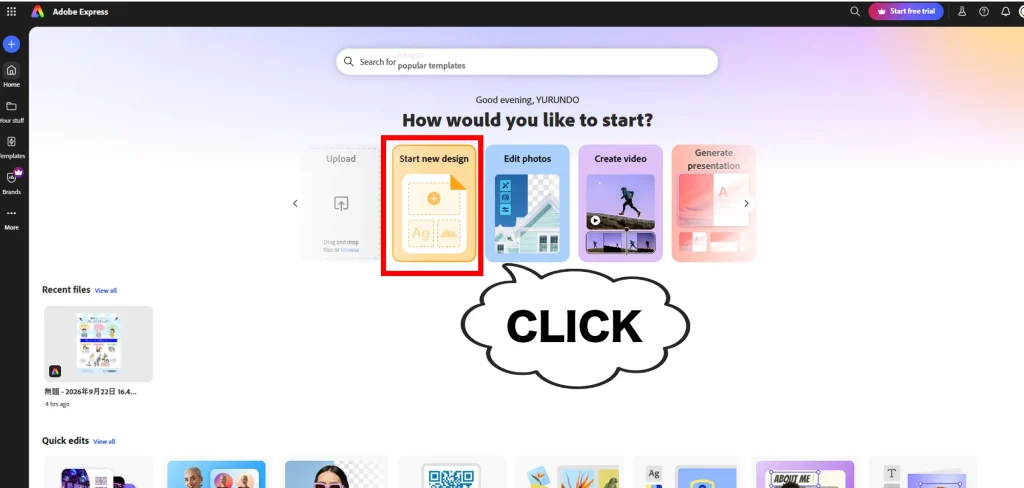
Open Adobe Express and click “Start new design.”
STEP 02
Choose a Flyer Design
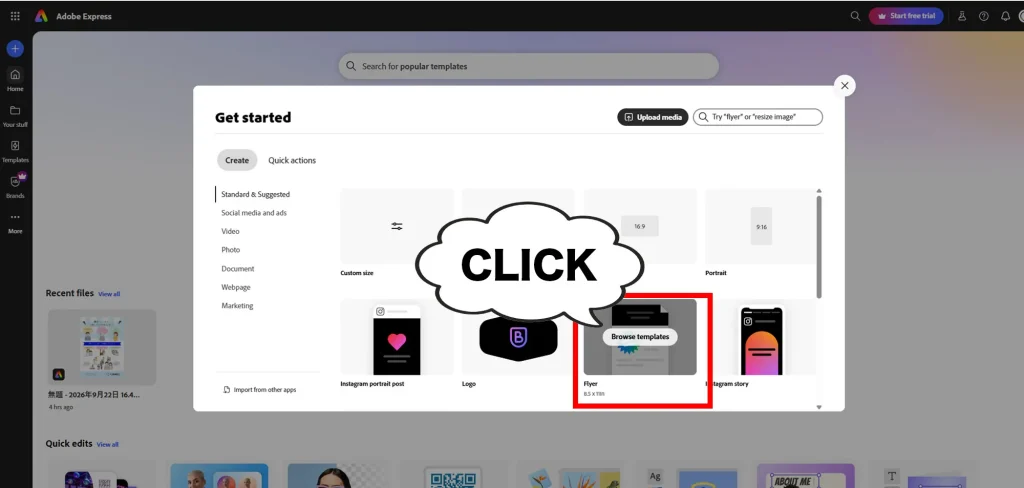
Select “Flyer” under “Create.” Adobe Express offers a variety of sizes and design options for different purposes.
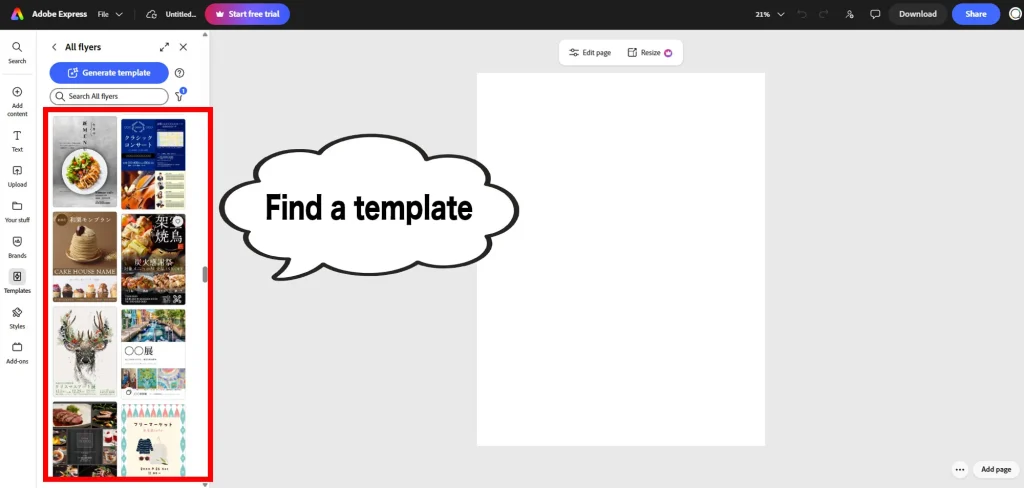
Once the flyer editor opens, browse the templates and choose a design you like.
In this guide, we'll use a free template to create a promotional flyer for YURUNDO.
In this guide, we'll use a free template to create a promotional flyer for YURUNDO.
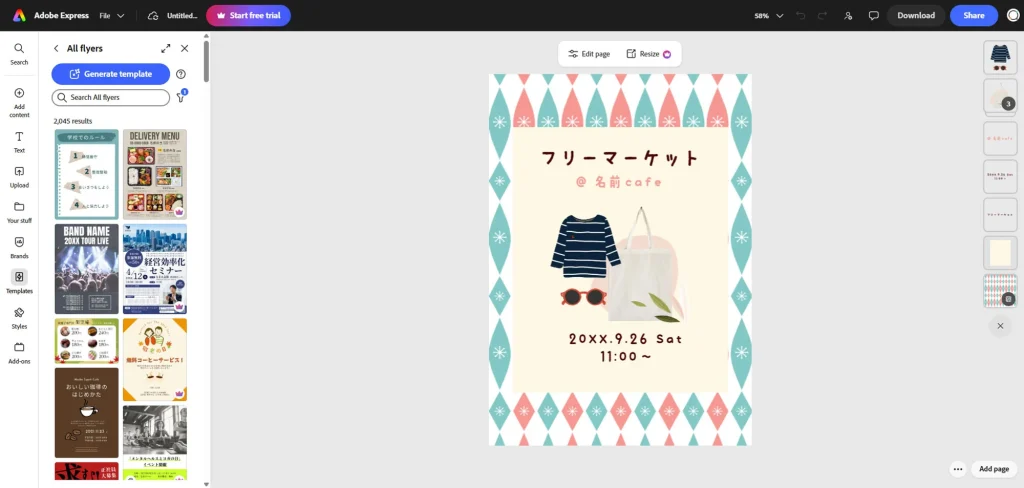
With a template, you can freely edit the text, images, and other elements without designing everything from scratch, making it easy to get started even if you're new to design.
STEP 03
Edit the Template Text
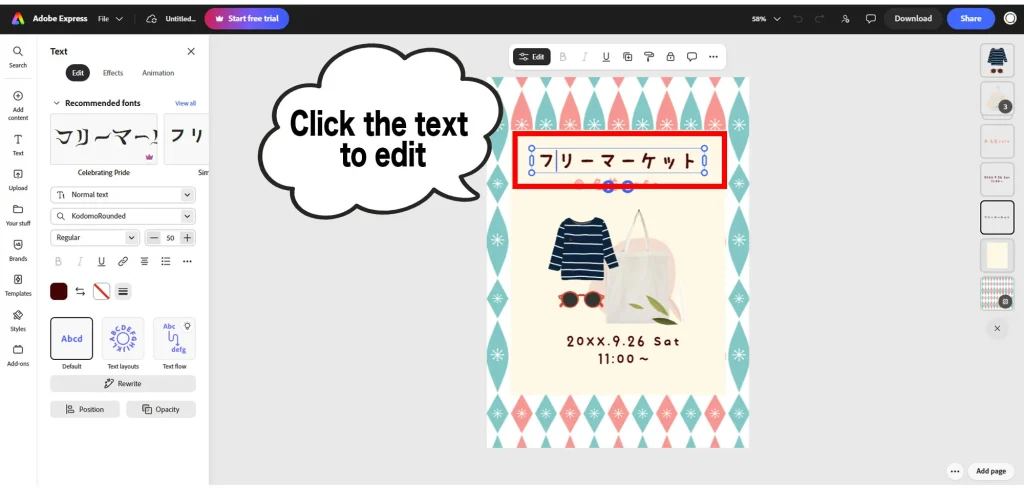
After choosing a template, start by changing the text to match your design.
Select the text you want to edit, then adjust the wording, font, size, and other settings as needed. In this example, we replaced the original template text with information about YURUNDO.
Select the text you want to edit, then adjust the wording, font, size, and other settings as needed. In this example, we replaced the original template text with information about YURUNDO.
STEP 04
Download an Illustration from YURUNDO
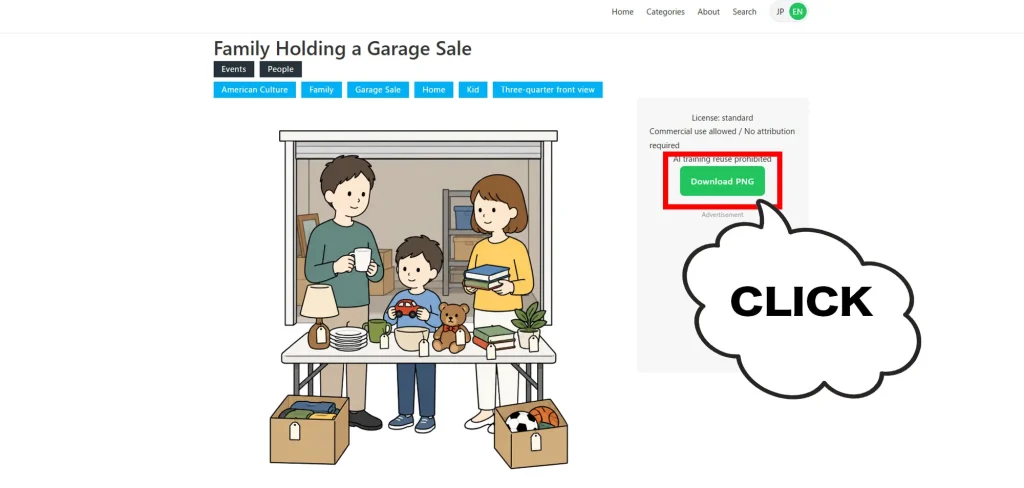
Find the illustration you want to use on YURUNDO.
Open the illustration page and click “Download PNG” to save the image.
YURUNDO illustrations can be used commercially with no attribution required, so you can also use them in designs created with Adobe Express.
Open the illustration page and click “Download PNG” to save the image.
YURUNDO illustrations can be used commercially with no attribution required, so you can also use them in designs created with Adobe Express.
STEP 05
Upload a YURUNDO Illustration to Adobe Express
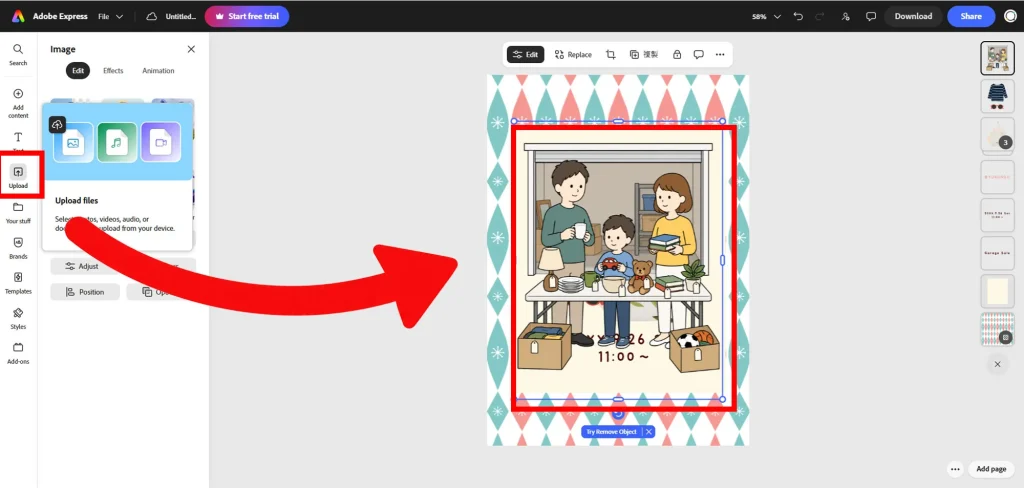
Return to Adobe Express and select “Upload.”
Your YURUNDO illustration will be added to Adobe Express.
Click the uploaded illustration to place it directly on your flyer.
Your YURUNDO illustration will be added to Adobe Express.
Click the uploaded illustration to place it directly on your flyer.
STEP 06
Arrange the Illustrations and Finish Your Design
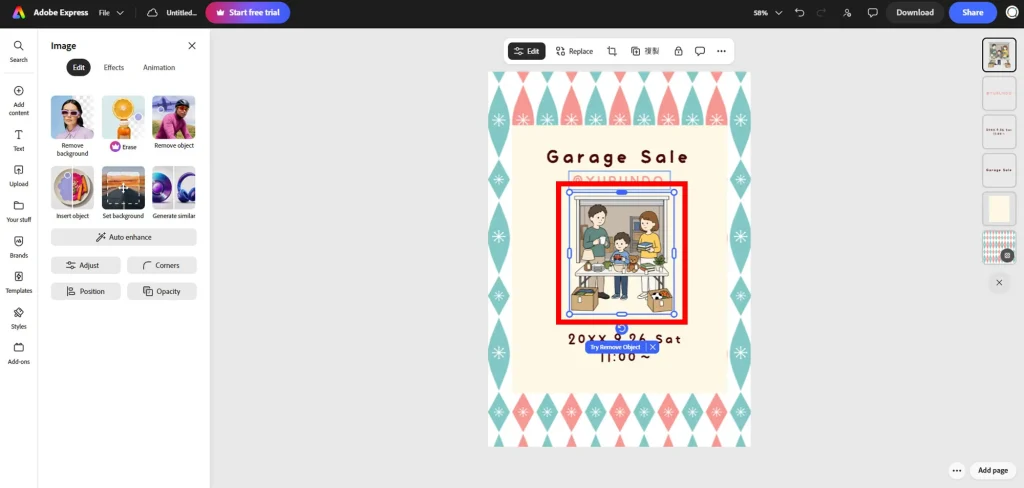
You can drag uploaded illustrations to reposition them and resize them to fit your design. Arrange the YURUNDO illustrations to match the layout of your template.
If you only need part of an illustration, select the image and choose “Crop,” then adjust the frame to display only the area you want.
YURUNDO also offers full-body illustrations, which you can easily crop to show only the part you need.
If you only need part of an illustration, select the image and choose “Crop,” then adjust the frame to display only the area you want.
YURUNDO also offers full-body illustrations, which you can easily crop to show only the part you need.
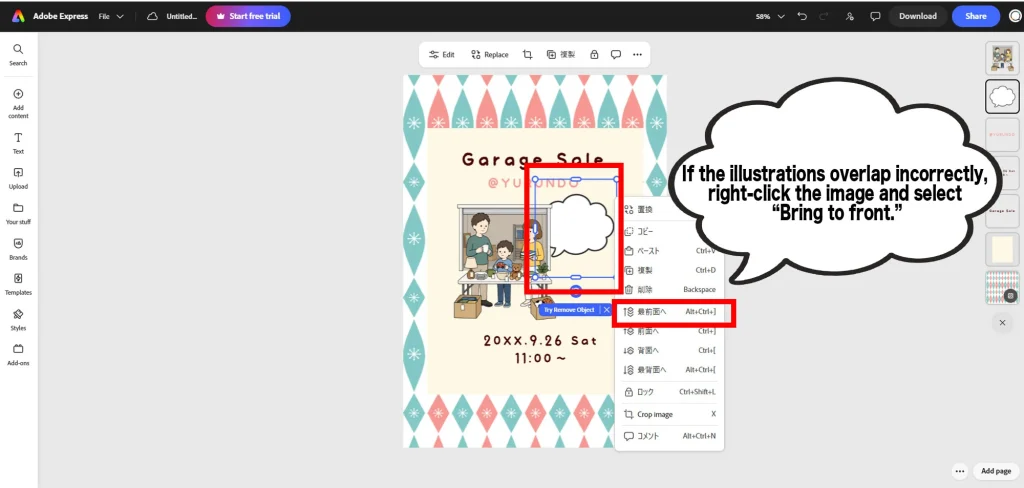
If the illustrations overlap in the wrong order, right-click the image you want to move forward and select “Bring to front.”
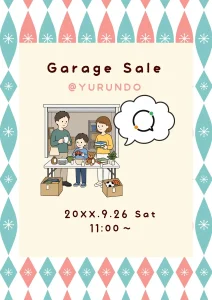
In this example, we combined several YURUNDO assets, including people, seasonal event illustrations, and icons. By mixing and matching illustrations for different purposes, you can create a wide variety of designs.
Once you've adjusted the position and size of the text and illustrations, your YURUNDO promotional flyer is complete.
In this example, we combined several YURUNDO assets, including people, seasonal event illustrations, and icons. By mixing and matching illustrations for different purposes, you can create a wide variety of designs.
Once you've adjusted the position and size of the text and illustrations, your YURUNDO promotional flyer is complete.
STEP 07
Download Your Finished Design
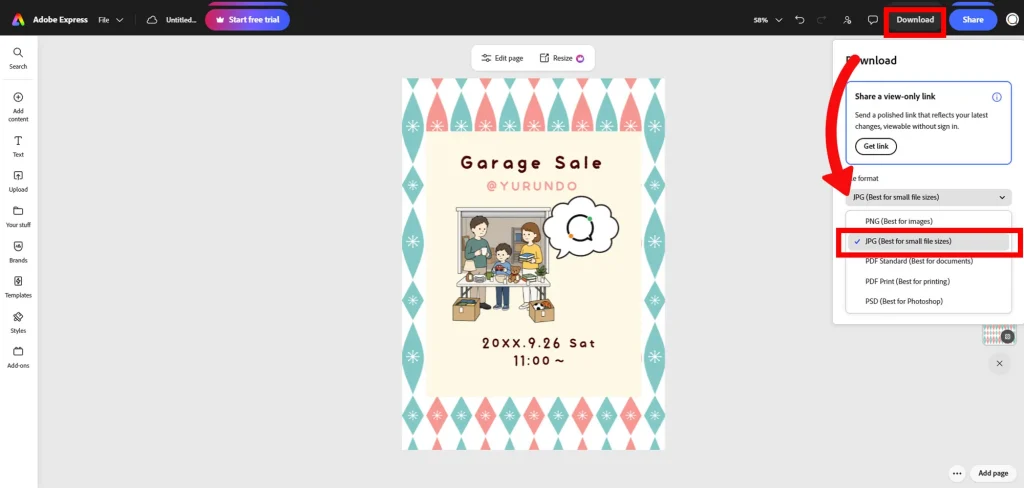
Once your design is complete, export it from Adobe Express.
In this example, we downloaded the design as a JPG. Choose the format that best suits your needs, such as PDF for printing or JPG or PNG for digital use.
In this example, we downloaded the design as a JPG. Choose the format that best suits your needs, such as PDF for printing or JPG or PNG for digital use.
Create a Design with YURUNDO Illustrations
Get started with Adobe Express for free. Combine free YURUNDO illustrations to create flyers, social media graphics, documents, and more.
[ Start Creating with Adobe Express for Free ↗ ]
※This page contains affiliate links.
Get started with Adobe Express for free. Combine free YURUNDO illustrations to create flyers, social media graphics, documents, and more.
[ Start Creating with Adobe Express for Free ↗ ]
※This page contains affiliate links.
Looking for More Advanced Creative Tools?
Adobe Creative Cloud Pro brings together creative tools such as Photoshop and Illustrator for more advanced design and creative work.
[ Explore Adobe Creative Cloud Pro ↗ ]
※This page contains affiliate links.